
Turn emails and documents into QuickBooks transactions.
Atelion automates the entry behind quoting, purchasing, sales, and receiving. Connect your inbox or upload a document. The platform reads the details, matches your items, and creates the QuickBooks transaction your team needs.
 Outlook
 Gmail
Gmail
See a request become an estimate.
Follow one customer’s request through Atelion: bring in the document, check the extracted details, review the matches, and carry the work into QuickBooks.
-
Start with the request.
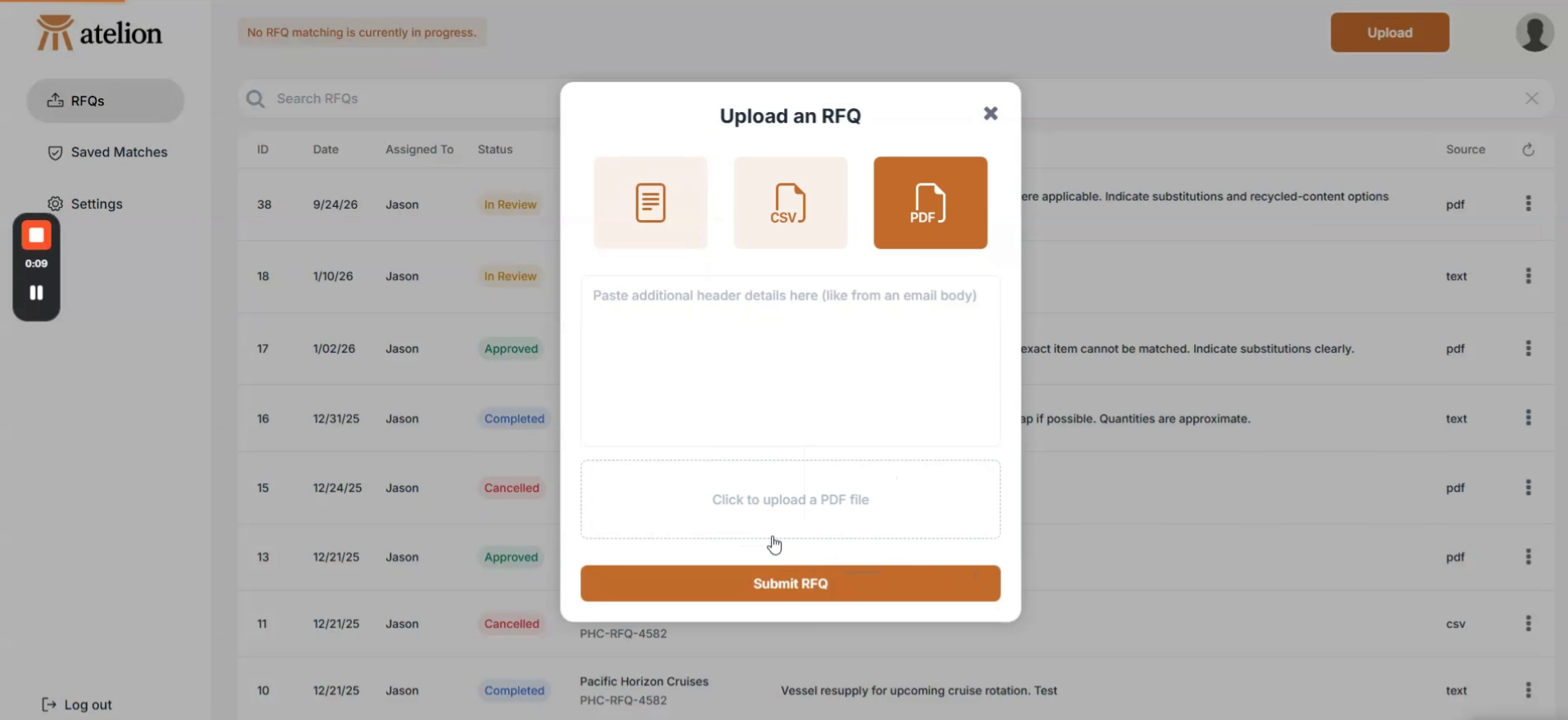
Upload a PDF or CSV, or paste the request as text. Add any instructions from the customer’s email alongside the document.
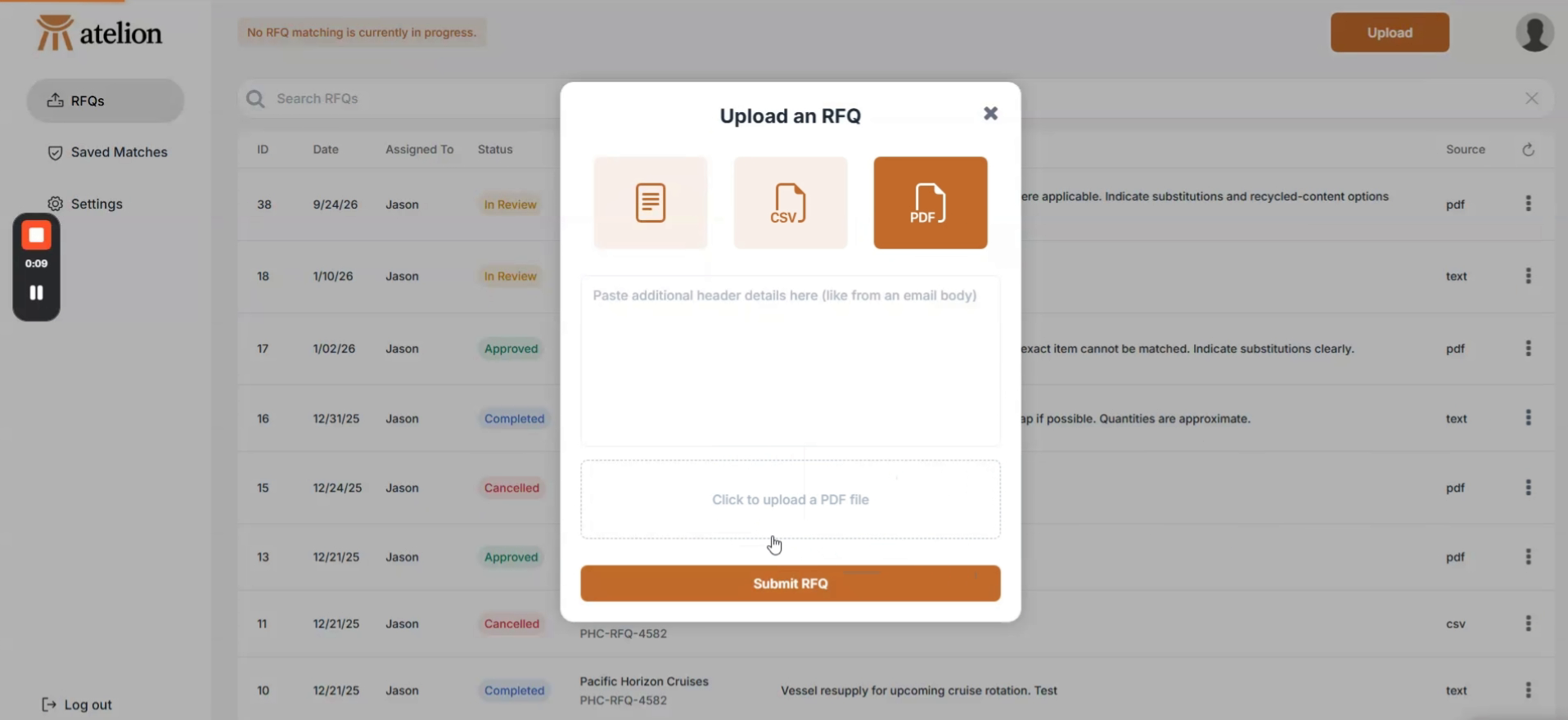
Atelion · Upload an RFQView full size -
The details are already there.
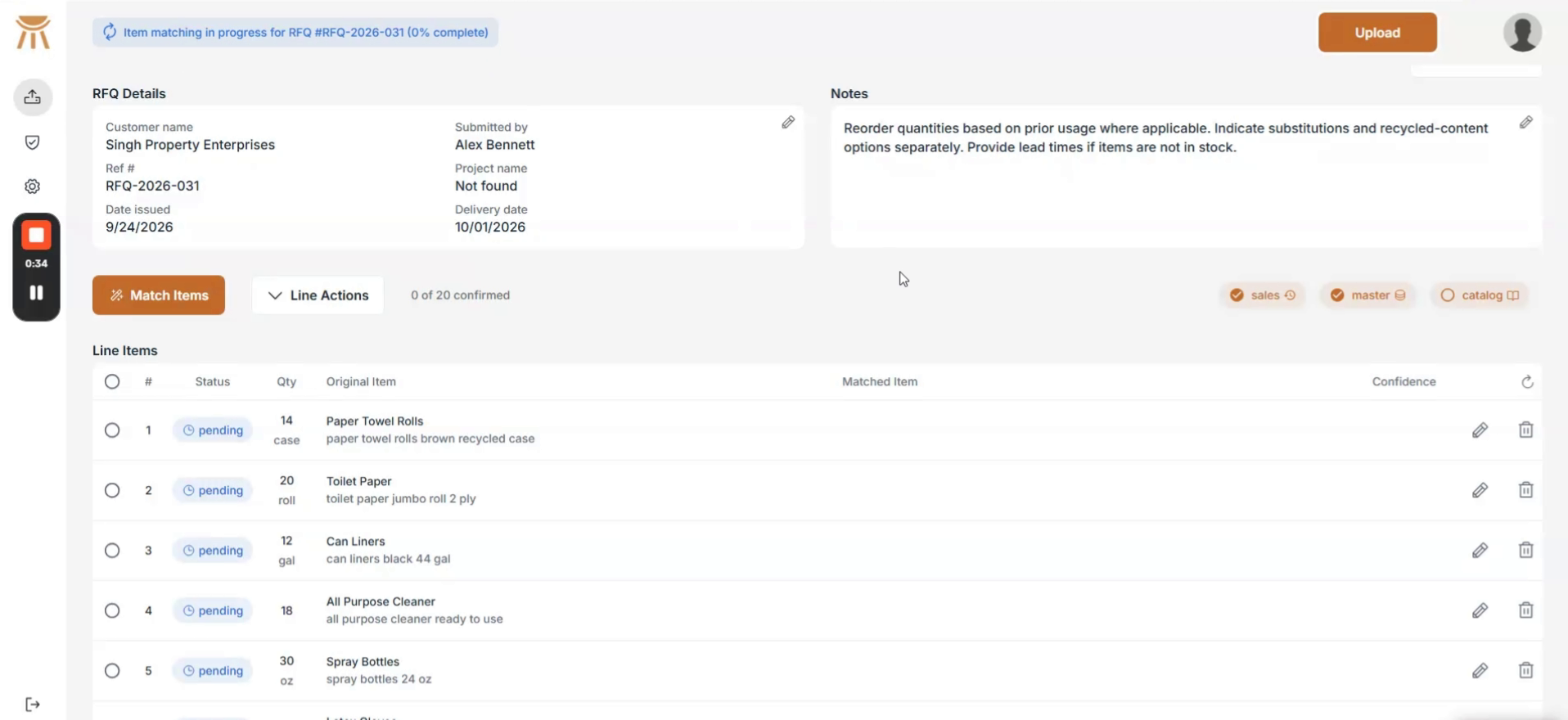
Atelion extracts the customer, dates, notes, quantities and line items. Your team starts with a populated request, ready to check.
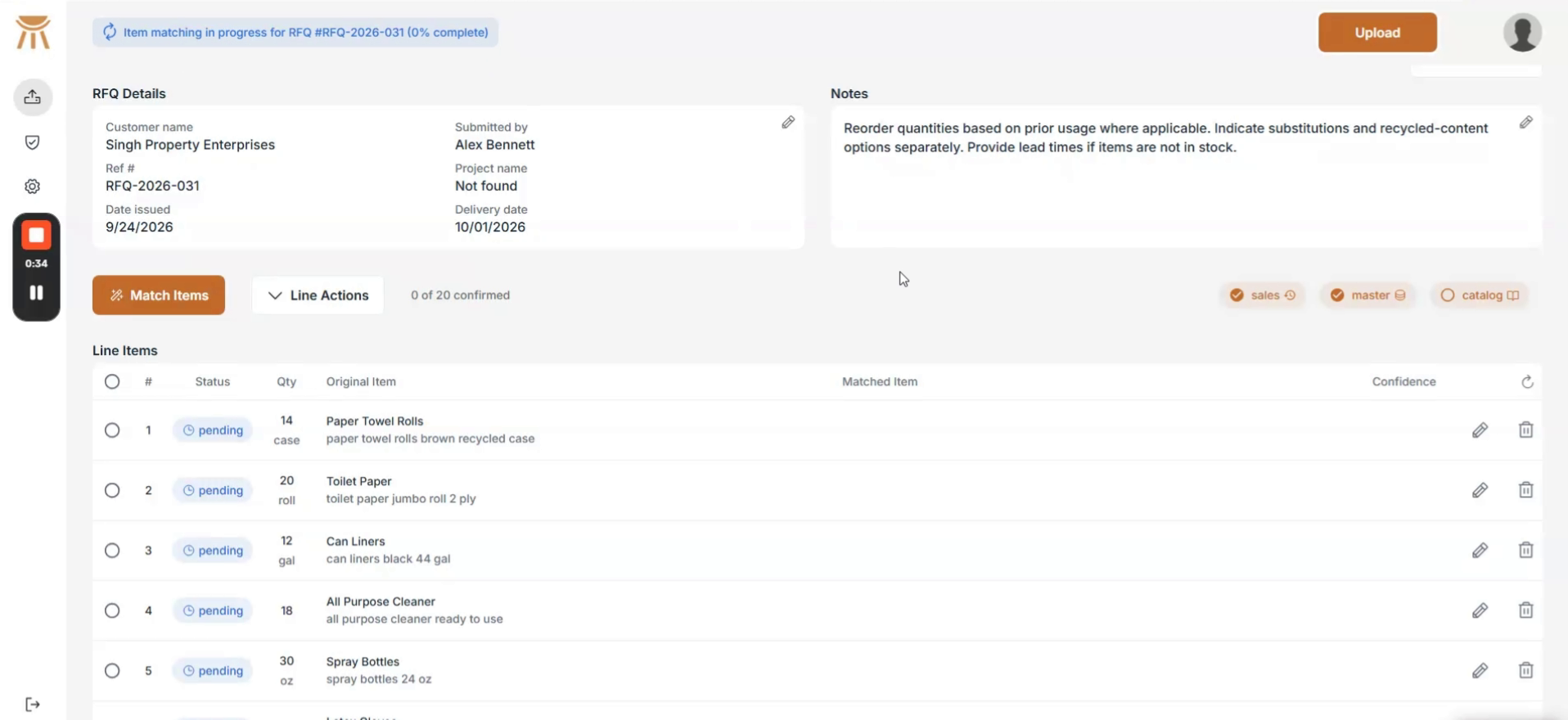
Atelion · Extracted request detailsView full size -
Choose the right item.
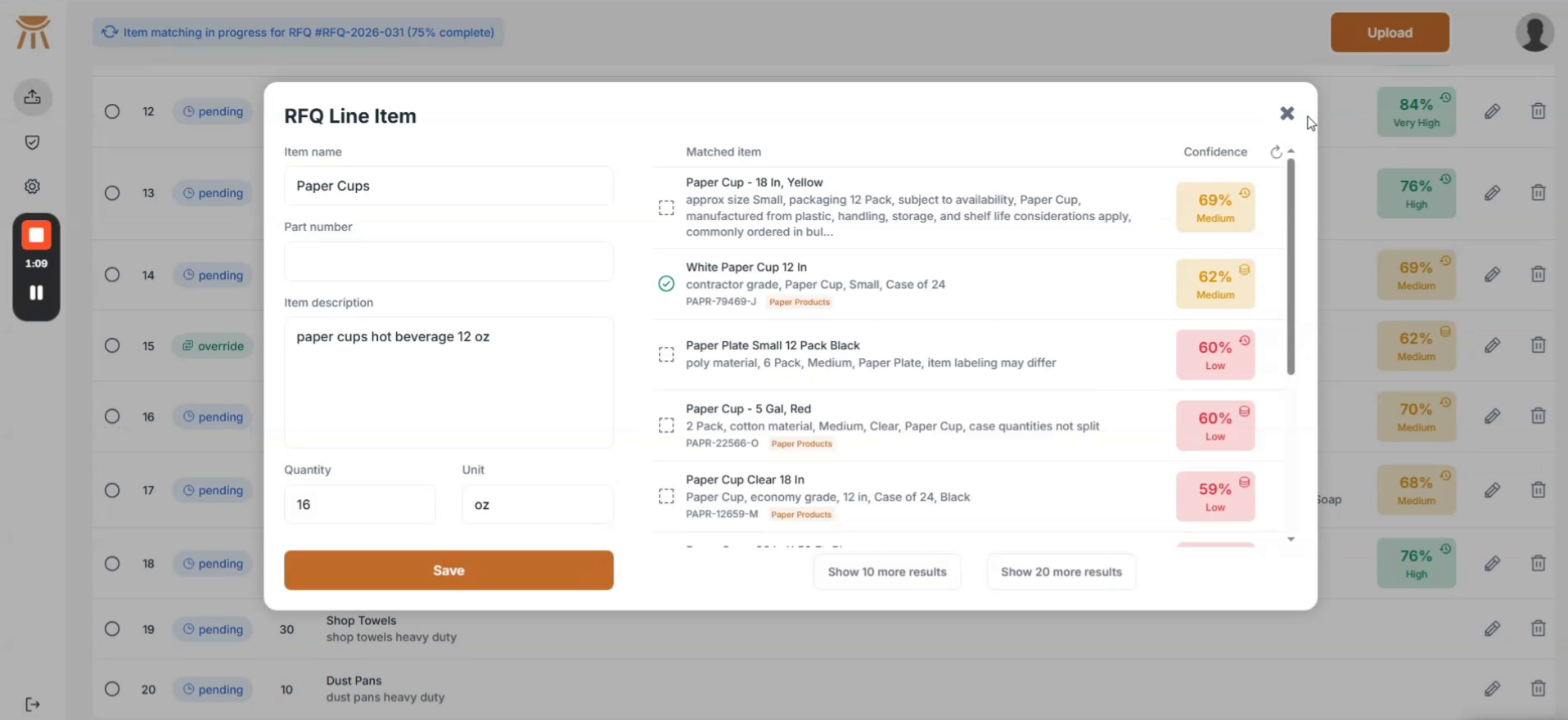
Compare the customer’s description with suggested matches from your item records. Confidence scores help you decide what to review, and you can override a suggestion.
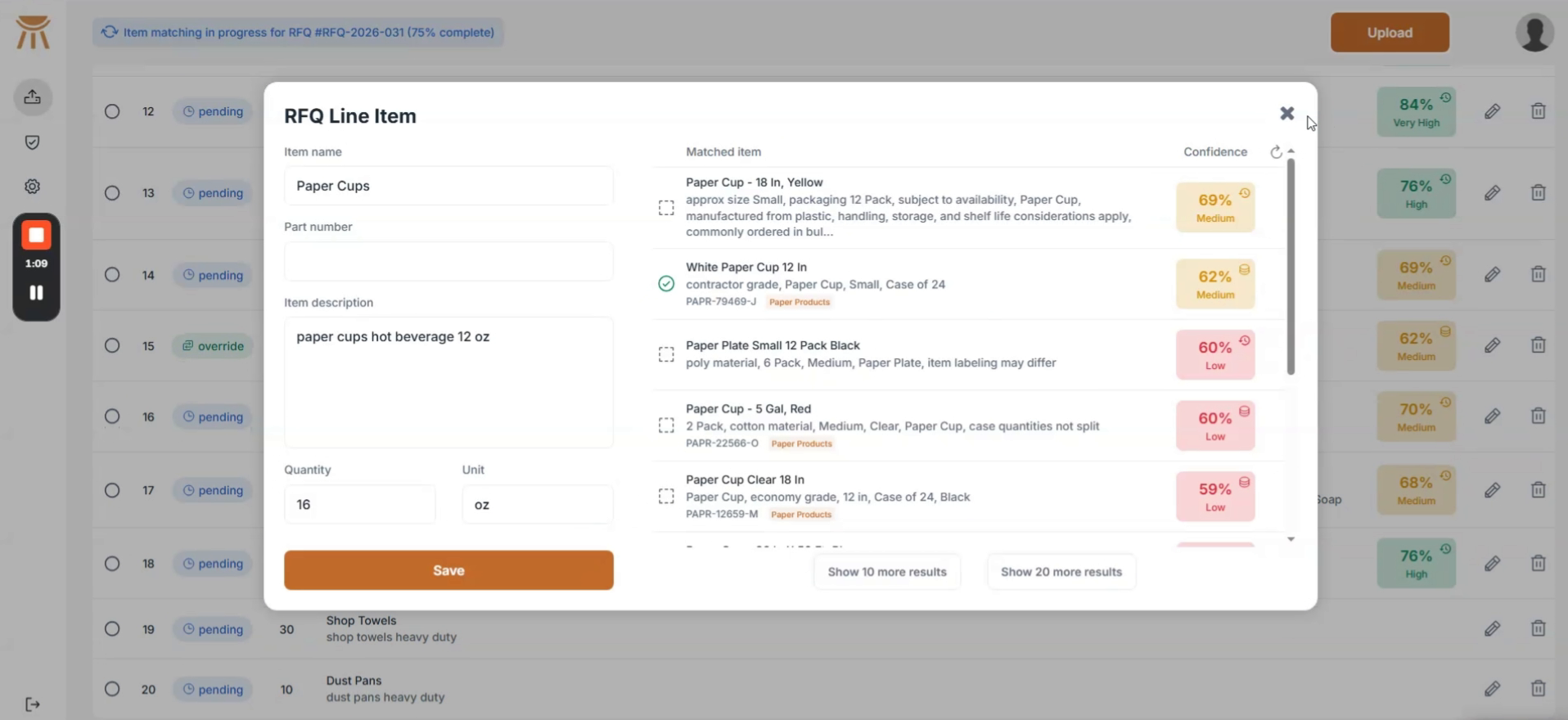
Atelion · Review an item matchView full size -
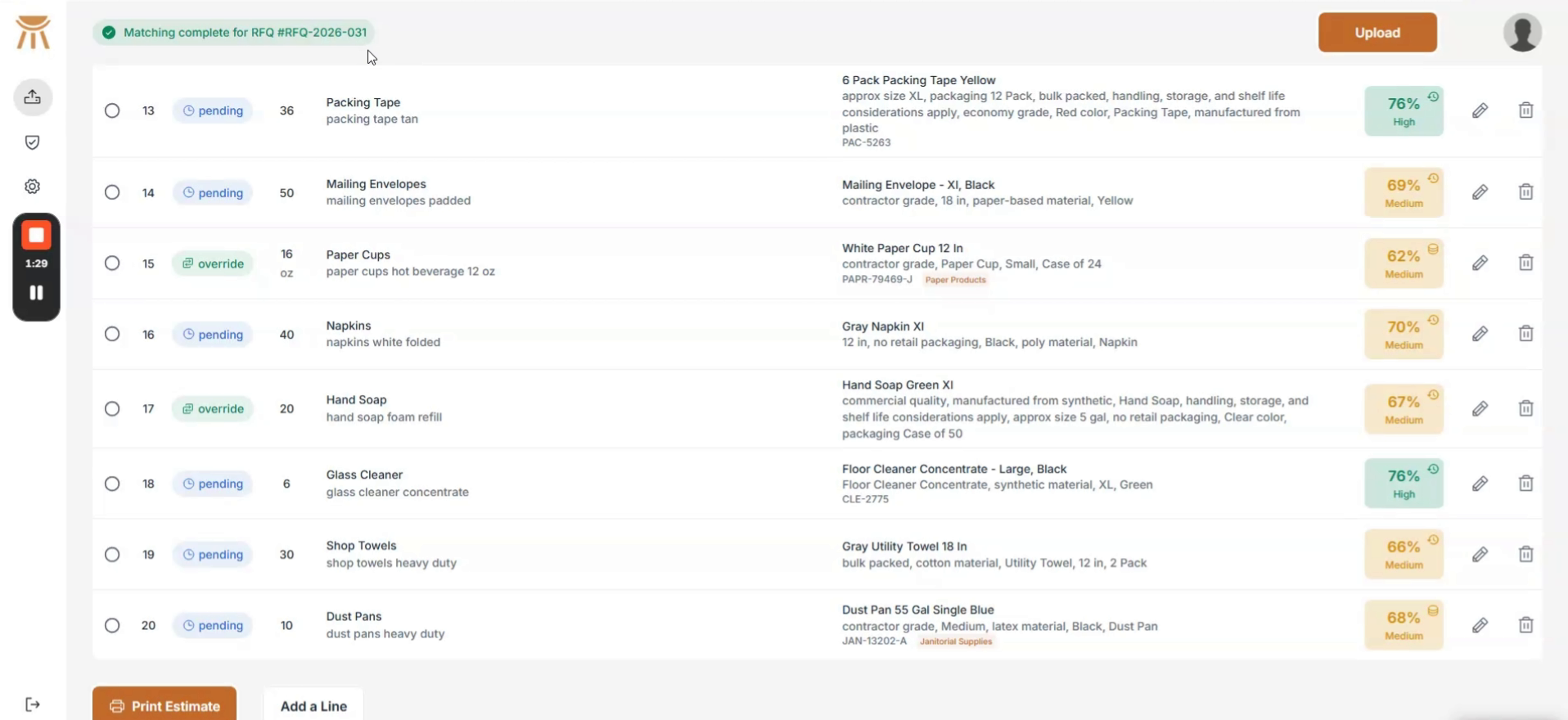
Check the request together.
See the original items and matched products side by side. Manual overrides stay visible, so your team can distinguish its choices from suggestions still awaiting review.
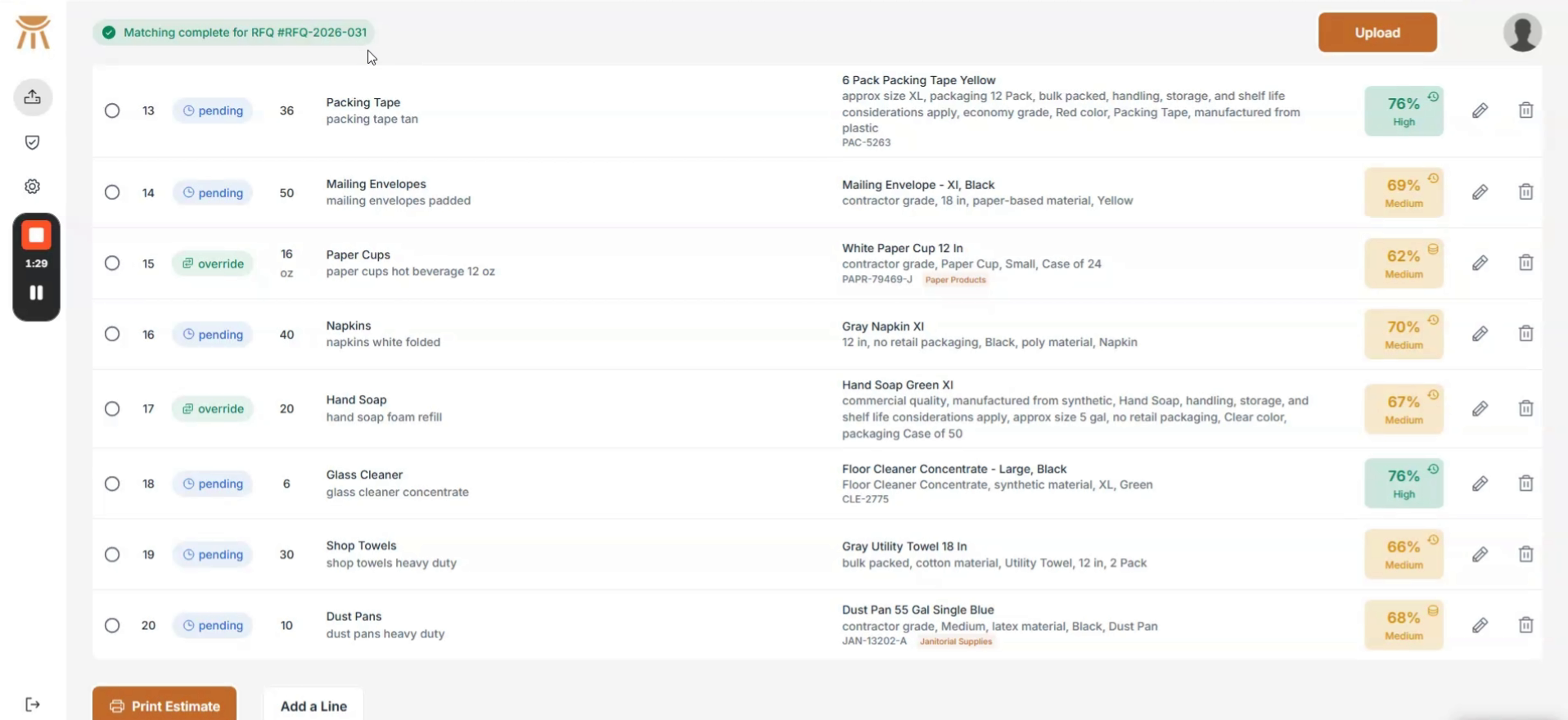
Atelion · Matched line itemsView full size -
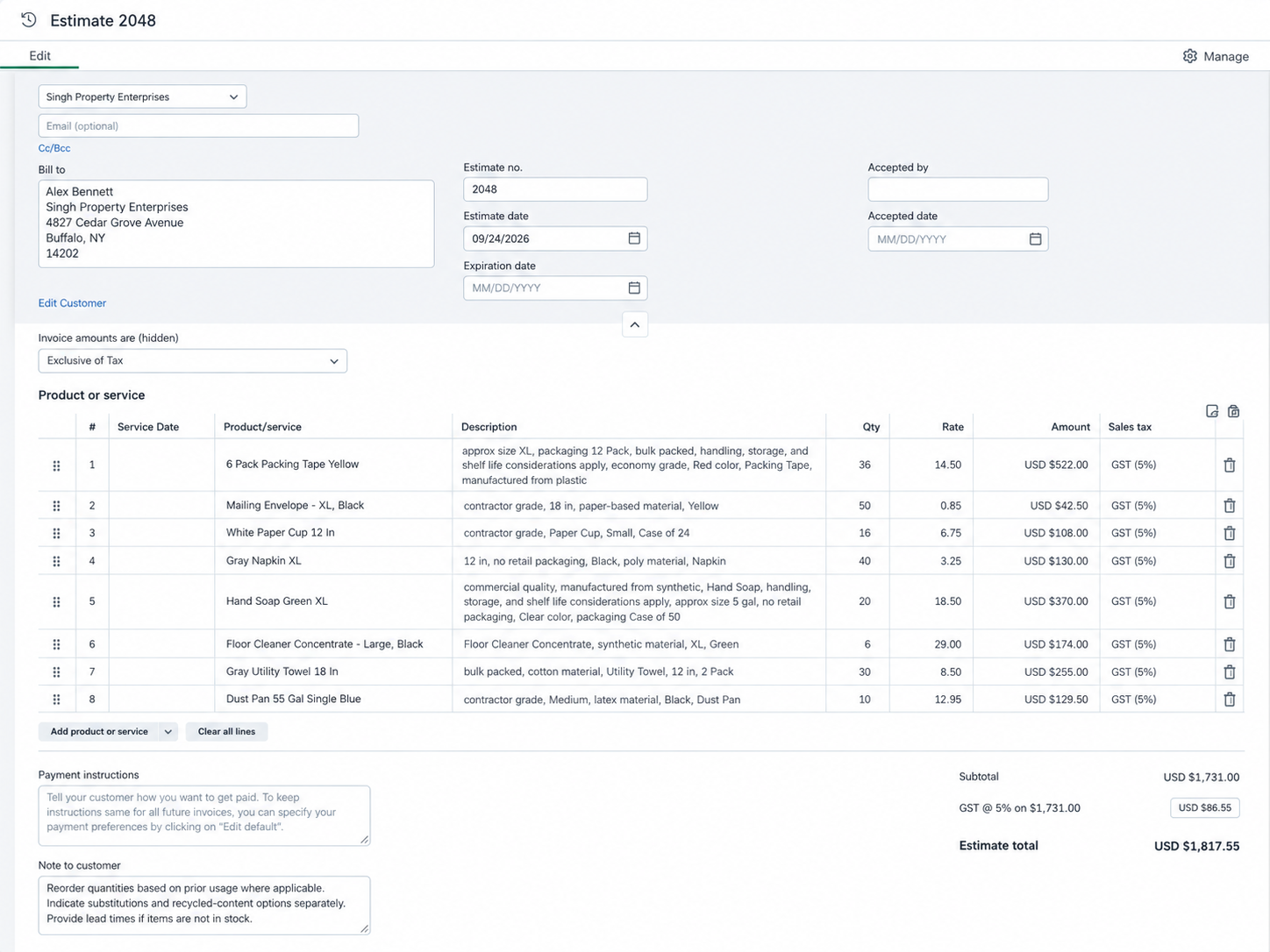
Carry the work into QuickBooks.
The matched items become the lines of an estimate, with the customer details, quantities and notes in place. Here’s how those selected items look together in QuickBooks Online.
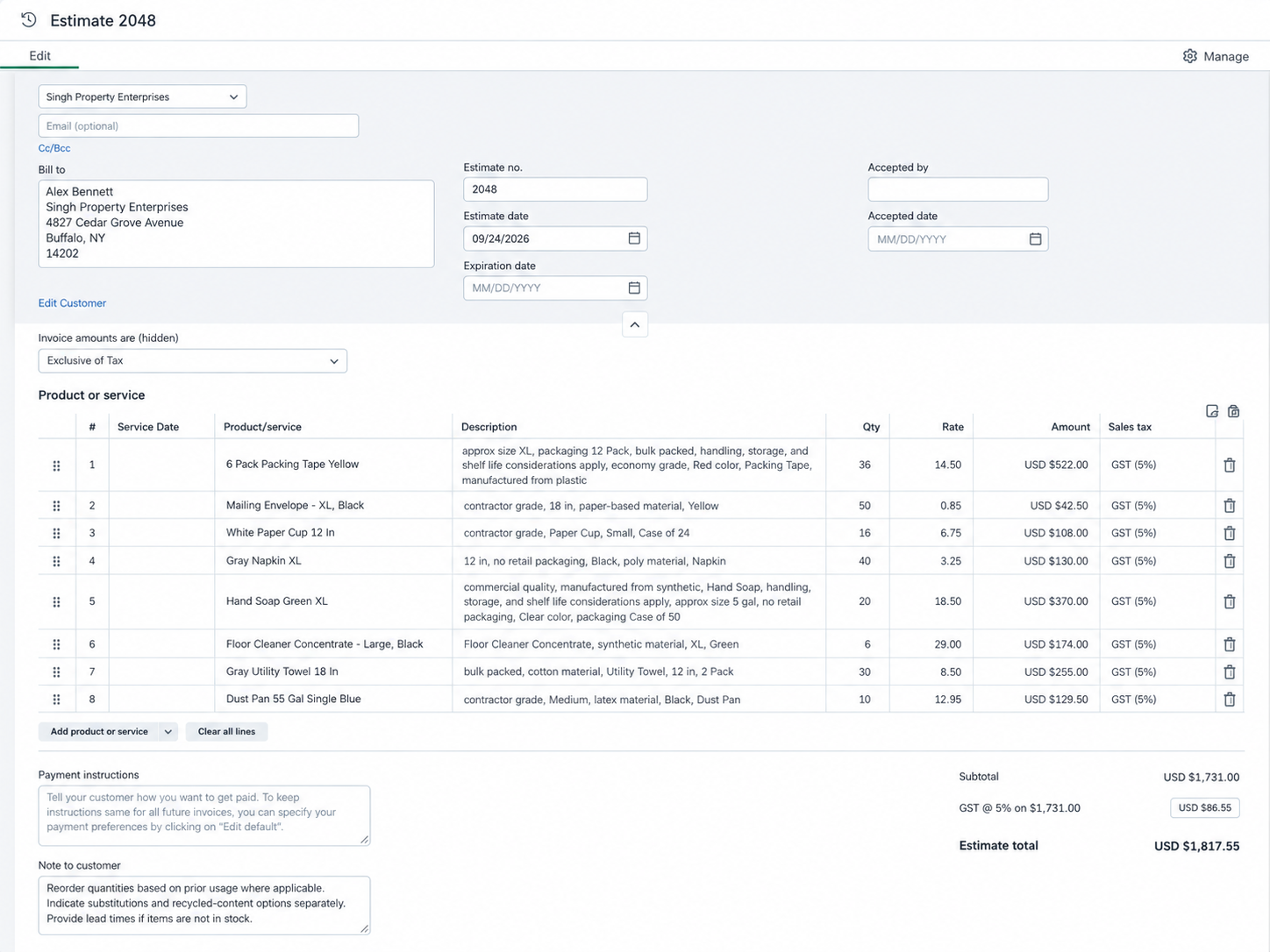
QuickBooks Online · Example estimateView full size Illustrative estimate with sample pricing and billing details.
See the same workflow with a request your team handles every day.
Book a demoYour team shouldn’t be the connection between your inbox and QuickBooks.
Quote requests, customer orders, and receiving documents arrive throughout the day. Someone has to read each one, find the right items, and enter the same details into QuickBooks.
When descriptions don’t match your item names, the work slows down. Your team digs through records to figure out what a customer or supplier means.
Atelion handles the document entry, so your team can focus on the requests and exceptions that need their attention.
From incoming document to QuickBooks transaction.
Explore the steps. This illustration doesn’t connect to QuickBooks.
- Step 1
Start where the work arrives.
Connect Outlook or Gmail, or upload a PDF or CSV. Atelion reads the email and document details your team would otherwise enter by hand.
- Step 2
Match against your QuickBooks items.
Atelion matches extracted line items to your QuickBooks catalog. For customer requests, sales history adds context when descriptions are unclear.
- Step 3
Handle the exceptions.
Review uncertain matches and correct details that need attention before they reach QuickBooks. Confidence scores help your team decide what to check.
- Step 4
Create the right transaction.
Atelion automatically turns the processed details into an estimate, sales order, purchase order, or item receipt, based on your workflow.
See why an item was suggested.
A customer’s previous orders can help make sense of an unclear request. Atelion uses that sales history when assessing matches, giving your team more context than a product description alone.
You can review the confidence scores and override a suggestion before it reaches QuickBooks.
We know QuickBooks. We know inventory.
Each of Atelion’s three founders has spent more than a decade building inventory solutions for businesses that run on QuickBooks.
We understand how inventory and accounting fit together, from item records to the transactions behind every purchase and sale. That experience shapes Atelion, from reading incoming documents to creating the transactions your team works with.
Get help fitting it to your business.
Atelion combines the platform with implementation and customization support. We work with your team to connect your inboxes, map your documents and items, and set up the transactions that fit your operation.
Start with the workflow that takes the most manual entry. Add others as you need them.
Bring a real email or document.
Choose something your team enters into QuickBooks by hand: a quote request, customer order, purchasing request, or receiving document. We’ll walk through how Atelion can turn it into the transaction you need.
Or email hello@atelion.com